
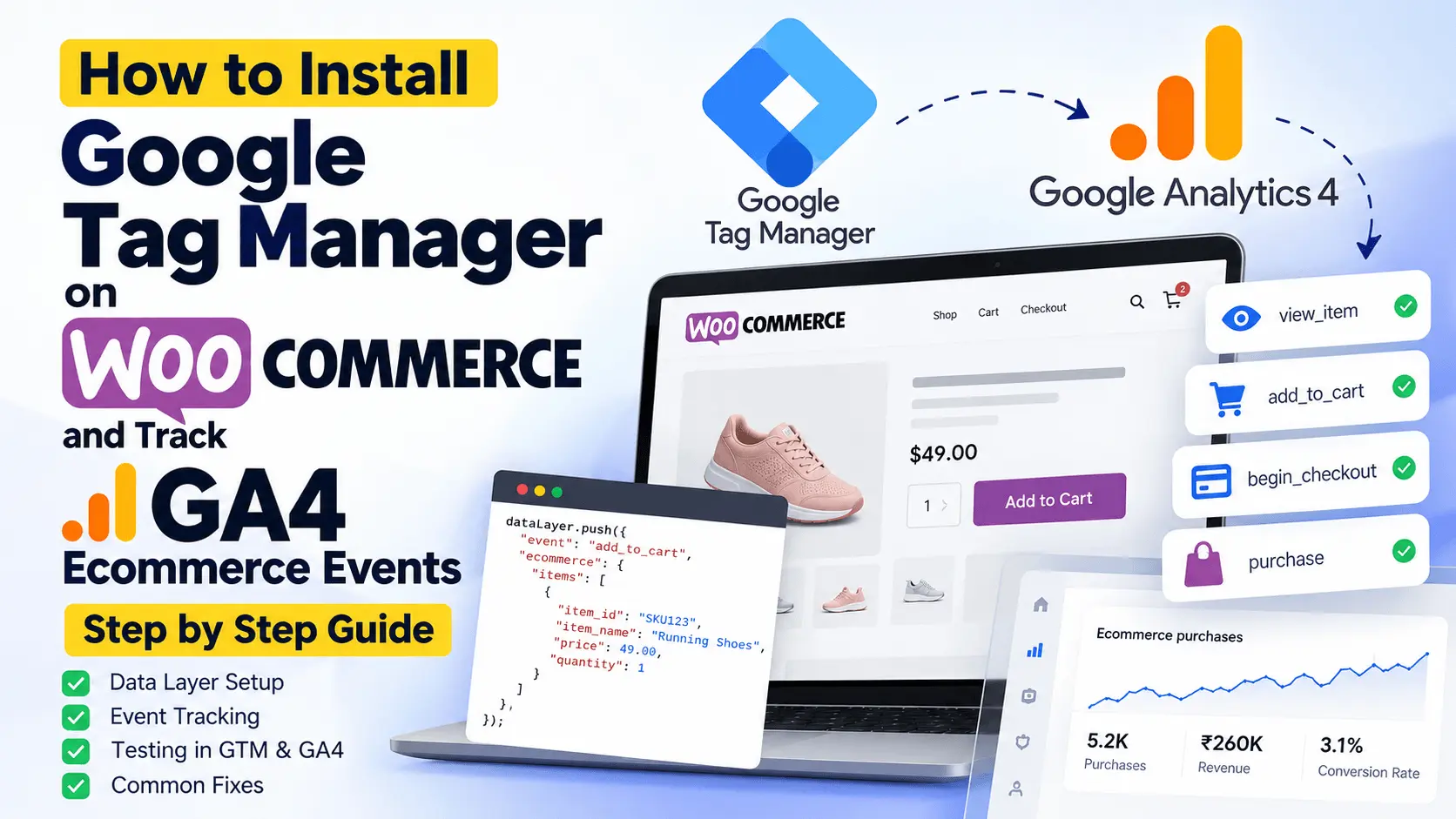
How to Set Up Google Tag Manager on WooCommerce: Complete Guide
Quick Answer
To set up Google Tag Manager (GTM) on WooCommerce: (1) create a GTM web container, (2) install the container code on your store using a plugin like GTM4WP or by adding the snippets to your child theme, (3) confirm it loads in GTM Preview mode, (4) enable the WooCommerce ecommerce data layer, (5) create a GA4 configuration tag plus GA4 event tags for ecommerce events, (6) test a full purchase, and (7) publish the container. Most stores can finish this in 1 to 2 hours.
What Is Google Tag Manager and Why Does a WooCommerce Store Need It?
Google Tag Manager is a free tool that lets you add and manage tracking scripts (called tags) from one dashboard instead of editing your site code each time. For a WooCommerce store, GTM is the cleanest way to run:
- Google Analytics 4 (GA4) ecommerce reporting
- Google Ads conversion tracking and remarketing
- Meta Pixel and other ad platform pixels
- Heatmaps, email platform scripts, and affiliate tags
Without GTM, every new tracking script means touching theme files or installing another plugin, which slows the site and increases the chance of duplicate or broken tracking.
GTM sits between your store and every marketing tool
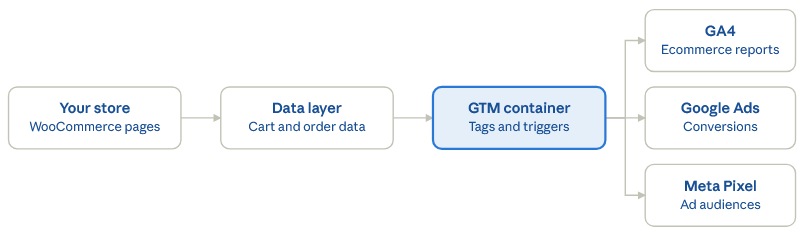
Your store pushes events into the data layer, GTM reads them, and each tag forwards them to GA4, Google Ads or Meta.
Before You Start
Have these ready:
- Admin access to your WordPress and WooCommerce dashboard
- A Google account with access to tagmanager.google.com
- A GA4 property and its Measurement ID (it looks like G-XXXXXXXXXX)
- A staging site, if possible, for testing
- A list of every tracking script currently on the store, so you can remove duplicates later
Step 1: Create a GTM Account and Web Container
- Go to tagmanager.google.com and click Create Account.
- Enter your company name as the account name and choose your country.
- Enter your store domain as the container name and select Web as the target platform.
- Accept the terms of service.
- Copy your container ID (it looks like GTM-XXXXXXX). You will need it in the next step.
Step 2: Install GTM on Your WooCommerce Site
There are two reliable methods. Pick one, not both.
Option A: Use a Plugin (Recommended for Most Stores)
The most popular choice is GTM4WP (Google Tag Manager for WordPress) by Thomas Geiger. It adds the container code and also builds the WooCommerce ecommerce data layer for you, which saves hours of custom work.
- In WordPress, go to Plugins > Add New and search for “GTM4WP”.
- Install and activate the plugin.
- Go to Settings > Google Tag Manager.
- Paste your container ID into the Container ID field.
- Under Container code placement, choose the option that places the code in the head and after the opening body tag (the default footer-free option is fine for most themes).
- Save your changes.
Other plugins such as Site Kit by Google or WPCode can also insert the container code, but they do not generate the full WooCommerce data layer by themselves.
Option B: Add the Code Manually
Use this if you want zero extra plugins. Always do it in a child theme so updates do not erase your changes.
- In GTM, click your container ID at the top of the workspace to open the install instructions.
- Copy the first snippet and paste it as high as possible in the
<head>of every page (usually via your child theme’sfunctions.phpusing thewp_headhook). - Copy the second snippet (the
<noscript>iframe) and place it immediately after the opening<body>tag, using thewp_body_openhook.
A manual install only loads GTM. You will still need to build the ecommerce data layer yourself or add it with a plugin.
Step 3: Verify the Installation
- In GTM, click Preview at the top right of the workspace.
- Enter your store URL and click Connect.
- A new tab opens with your store and the Tag Assistant panel shows “Connected”.
- If GTM loads, you will see the container listed in the Tag Assistant summary.
If it does not connect, clear your site cache and any CDN cache, then try again. Caching plugins are the most common cause of a missing container.
Step 4: Set Up the GA4 Configuration Tag
- In GTM, go to Tags > New.
- Choose Google Tag as the tag type.
- Paste your GA4 Measurement ID into the Tag ID field.
- Set the trigger to Initialization – All Pages.
- Name the tag “Google Tag – GA4 Config” and save.
Important: if Site Kit, a theme option, or another plugin already sends GA4 data, remove it now. Running two GA4 setups at once is the number one cause of inflated pageviews and duplicate purchases.
Step 5: Enable the WooCommerce Ecommerce Data Layer
GA4 ecommerce reports depend on structured data pushed into the data layer. With GTM4WP:
- Go to Settings > Google Tag Manager > Integration > WooCommerce.
- Tick Track e-commerce.
- Set the data layer format to the GA4 ecommerce format.
- Choose whether to include the product SKU or ID as the item ID, and keep it consistent with your Google Ads feed.
- Save your changes.
The data layer will now push the following events as shoppers move through the store:
view_item_list: a product list or category page is viewedselect_item: a product is clicked from a listview_item: a product page is viewedadd_to_cartandremove_from_cartview_cartbegin_checkoutadd_shipping_infoandadd_payment_infopurchase: the order confirmation page is viewed
Ten ecommerce events follow the shopper from browsing to purchase
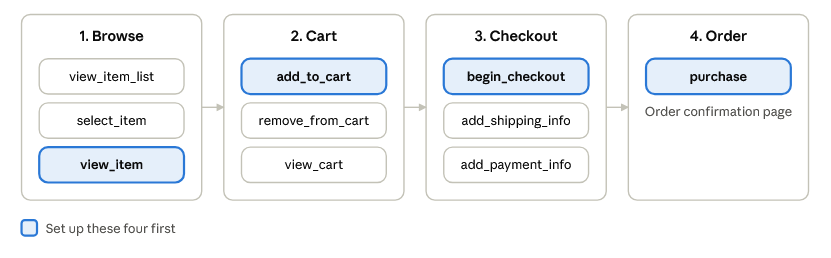
The four highlighted events cover the core funnel; add the rest once those report correctly.
Step 6: Create GA4 Event Tags for Ecommerce
For each ecommerce event, you need a trigger and a tag.
Each ecommerce event needs one trigger and one tag

The trigger listens for the event name; the tag sends it, with ecommerce data, to GA4.
Create the triggers
- Go to Triggers > New.
- Choose Custom Event as the trigger type.
- Enter the exact event name (for example,
add_to_cart). - Save it with a clear name such as “CE – add_to_cart”.
- Repeat for each event you want to track.
Create the tags
- Go to Tags > New and choose Google Analytics: GA4 Event.
- Select your GA4 configuration (Google Tag) in the configuration field.
- Enter the event name, matching the trigger exactly.
- Under More Settings > Ecommerce, tick Send Ecommerce data and set the data source to Data Layer.
- Attach the matching custom event trigger and save.
- Repeat for each ecommerce event.
At a minimum, set up view_item, add_to_cart, begin_checkout, and purchase. These four power the core GA4 shopping funnel.
Step 7: Test Everything Before You Publish
- Open GTM Preview mode and walk through the full journey: browse a category, open a product, add it to the cart, start checkout, and place a test order.
- In Tag Assistant, confirm each event fires once and shows item details, value, and currency.
- Open GA4 and go to Admin > DebugView to see events arriving live.
- Check that the purchase event includes a transaction ID, the correct total, and the correct currency.
- Refresh the order confirmation page and confirm the purchase event does not fire a second time.
If you use the block-based WooCommerce checkout, test it separately, since some setups behave differently from the classic shortcode checkout.
Step 8: Add Your Other Marketing Tags
Once GA4 is reliable, build on the same data layer:
- Google Ads conversion tracking: create a Conversion Tracking tag using your Conversion ID and Label, triggered by the
purchaseevent. - Google Ads remarketing: use the same data layer to build audiences.
- Meta Pixel: add the pixel through a custom HTML or template tag and map
view_item,add_to_cart,begin_checkout, andpurchaseto standard Meta events. - Meta Conversions API: consider server-side tagging for more accurate attribution as browser tracking gets less reliable.
Step 9: Configure Consent Mode (If You Sell to the EU or UK)
If your store serves visitors in the EU, EEA, or UK, tags should respect cookie consent choices.
- Use a consent management platform (CMP) that supports Google Consent Mode v2.
- In GTM, set default consent states to denied for ad and analytics storage in regions that require it.
- Update the consent state when the visitor makes a choice.
- Test in Preview mode that tags respect both accepted and rejected states.
This is a technical setup, not legal advice. Check your local privacy requirements with a qualified professional.
Step 10: Publish Your Container
- Click Submit in the top right of GTM.
- Add a clear version name, such as “Initial GA4 ecommerce setup”.
- Add a short description of what changed.
- Click Publish.
- Check GA4 Realtime reports to confirm live data is coming in.
Always publish changes with a version name and description. It makes rollbacks and audits much easier later.
Common Mistakes to Avoid
- Duplicate tracking: GA4 installed through both GTM and a plugin or theme setting.
- Caching issues: pages served from cache without the data layer.
- Purchase events firing twice: often caused by page refreshes or both a plugin and a GTM tag sending the event.
- Mismatched item IDs: product IDs in GA4 differ from those in your Google Ads feed, breaking dynamic remarketing.
- Wrong currency or value: the purchase tag sends totals without tax or shipping as expected, or with the wrong currency code.
- Skipping testing on staging: publishing straight to the live container without a full test order.
- No ownership of the container: the GTM account was created under an agency or developer email and the store owner has no admin access.
Troubleshooting Quick Reference
- GTM does not load in Preview mode: clear all caches, check the container ID, and confirm the snippet is in the head.
- Events fire in Preview but not in GA4: check the Measurement ID, look for internal traffic filters, and use DebugView.
- Purchase event missing: confirm the order confirmation page loads the data layer and that the thank-you page is not redirected by a payment gateway.
- Revenue does not match WooCommerce: compare reporting delays, refunds, taxes, and shipping settings.
Frequently Asked Questions
Do I need a plugin to install Google Tag Manager on WooCommerce?
No. You can add the two GTM snippets manually using a child theme. However, a plugin like GTM4WP also builds the ecommerce data layer, which would otherwise require custom development.
Is Google Tag Manager free?
Yes. Google Tag Manager is free for standard use. Costs only come from related tools, such as a consent management platform or server-side hosting.
Should I use GTM or the Site Kit plugin for GA4?
Site Kit is simple and fine for basic pageview reporting. GTM is better when you need full ecommerce tracking, multiple ad platforms, or custom events, because everything lives in one container. Do not run both for GA4 at the same time.
How long does a WooCommerce GTM setup take?
A standard setup with GA4 ecommerce tracking usually takes 1 to 2 hours. Adding Google Ads, Meta, consent mode, and server-side tagging can extend that to several days.
Why is my GA4 purchase data different from WooCommerce orders?
Small gaps are normal because of ad blockers, consent choices, and browser privacy features. Large gaps usually point to duplicate or missing purchase events, so test the full checkout flow.
Can I track WooCommerce without a data layer?
You can track basic page views, but accurate product, cart, and purchase reporting needs a data layer. It is the standard way to pass ecommerce details into GA4.
Final Thoughts
A clean GTM setup gives your WooCommerce store reliable data for every marketing decision. Start with the container install, build the data layer, track the core ecommerce events, test a real order, and only then add ad platforms.
If you would rather have an expert handle it, Raveka Technologies sets up and audits GTM, GA4, and conversion tracking for WooCommerce stores across the USA, UK, and Australia. Clean tracking also helps you see which pages AI search sends traffic to. Read our guide to AI search visibility.
Get in touch for a tracking audit.
{
“@context”: “https://schema.org”,
“@graph”: [
{
“@type”: “BlogPosting”,
“headline”: “How to Set Up Google Tag Manager on WooCommerce: Complete Guide”,
“description”: “Learn how to install Google Tag Manager on WooCommerce and track GA4 ecommerce events step by step. Includes data layer setup, testing and fixes.”,
“image”: “https://ravekatech.com/wp-content/uploads/2026/10/GTM-and-GA4-WooCommerce-Tracking-step-Guide.webp”,
“datePublished”: “2026-10-16”,
“dateModified”: “2026-10-16”,
“mainEntityOfPage”: “https://ravekatech.com/how-to-set-up-google-tag-manager-on-woocommerce-complete-guide/”,
“author”: {
“@type”: “Organization”,
“name”: “Raveka Technologies”,
“url”: “https://ravekatech.com”
},
“publisher”: {
“@type”: “Organization”,
“name”: “Raveka Technologies”,
“url”: “https://ravekatech.com”,
“logo”: {
“@type”: “ImageObject”,
“url”: “https://ravekatech.com/wp-content/uploads/2025/02/raveka_by_ekta.webp”
}
}
},
{
“@type”: “HowTo”,
“name”: “How to set up Google Tag Manager on WooCommerce”,
“description”: “Install GTM on a WooCommerce store, enable the ecommerce data layer, and send GA4 ecommerce events.”,
“totalTime”: “PT2H”,
“step”: [
{ “@type”: “HowToStep”, “name”: “Create a GTM account and web container”, “text”: “Create a GTM account, add your store domain as a Web container, and copy the container ID (GTM-XXXXXXX).” },
{ “@type”: “HowToStep”, “name”: “Install GTM on your WooCommerce site”, “text”: “Use the GTM4WP plugin, or add the head and noscript body snippets through a child theme. Pick one method, not both.” },
{ “@type”: “HowToStep”, “name”: “Verify the installation”, “text”: “Open GTM Preview mode, enter your store URL and confirm Tag Assistant shows Connected.” },
{ “@type”: “HowToStep”, “name”: “Set up the GA4 configuration tag”, “text”: “Create a Google Tag with your GA4 Measurement ID and trigger it on Initialization – All Pages. Remove any duplicate GA4 setups.” },
{ “@type”: “HowToStep”, “name”: “Enable the WooCommerce ecommerce data layer”, “text”: “In GTM4WP, go to Integration > WooCommerce and tick Track e-commerce using the GA4 format.” },
{ “@type”: “HowToStep”, “name”: “Create GA4 event tags for ecommerce”, “text”: “Create Custom Event triggers and GA4 Event tags for view_item, add_to_cart, begin_checkout and purchase, with Send Ecommerce data turned on.” },
{ “@type”: “HowToStep”, “name”: “Test everything before publishing”, “text”: “Run a full test order in Preview mode, check GA4 DebugView, and confirm the purchase event fires only once.” },
{ “@type”: “HowToStep”, “name”: “Add your other marketing tags”, “text”: “Add Google Ads conversion tracking, remarketing and the Meta Pixel using the same data layer.” },
{ “@type”: “HowToStep”, “name”: “Configure Consent Mode”, “text”: “If you sell to the EU or UK, use a CMP that supports Consent Mode v2 and set default consent states in GTM.” },
{ “@type”: “HowToStep”, “name”: “Publish your container”, “text”: “Click Submit, add a version name and description, publish, then check GA4 Realtime reports.” }
]
},
{
“@type”: “FAQPage”,
“mainEntity”: [
{
“@type”: “Question”,
“name”: “Do I need a plugin to install Google Tag Manager on WooCommerce?”,
“acceptedAnswer”: { “@type”: “Answer”, “text”: “No. You can add the two GTM snippets manually using a child theme. However, a plugin like GTM4WP also builds the ecommerce data layer, which would otherwise require custom development.” }
},
{
“@type”: “Question”,
“name”: “Is Google Tag Manager free?”,
“acceptedAnswer”: { “@type”: “Answer”, “text”: “Yes. Google Tag Manager is free for standard use. Costs only come from related tools, such as a consent management platform or server-side hosting.” }
},
{
“@type”: “Question”,
“name”: “Should I use GTM or the Site Kit plugin for GA4?”,
“acceptedAnswer”: { “@type”: “Answer”, “text”: “Site Kit is simple and fine for basic pageview reporting. GTM is better when you need full ecommerce tracking, multiple ad platforms, or custom events, because everything lives in one container. Do not run both for GA4 at the same time.” }
},
{
“@type”: “Question”,
“name”: “How long does a WooCommerce GTM setup take?”,
“acceptedAnswer”: { “@type”: “Answer”, “text”: “A standard setup with GA4 ecommerce tracking usually takes 1 to 2 hours. Adding Google Ads, Meta, consent mode, and server-side tagging can extend that to several days.” }
},
{
“@type”: “Question”,
“name”: “Why is my GA4 purchase data different from WooCommerce orders?”,
“acceptedAnswer”: { “@type”: “Answer”, “text”: “Small gaps are normal because of ad blockers, consent choices, and browser privacy features. Large gaps usually point to duplicate or missing purchase events, so test the full checkout flow.” }
},
{
“@type”: “Question”,
“name”: “Can I track WooCommerce without a data layer?”,
“acceptedAnswer”: { “@type”: “Answer”, “text”: “You can track basic page views, but accurate product, cart, and purchase reporting needs a data layer. It is the standard way to pass ecommerce details into GA4.” }
}
]
}
]
}