
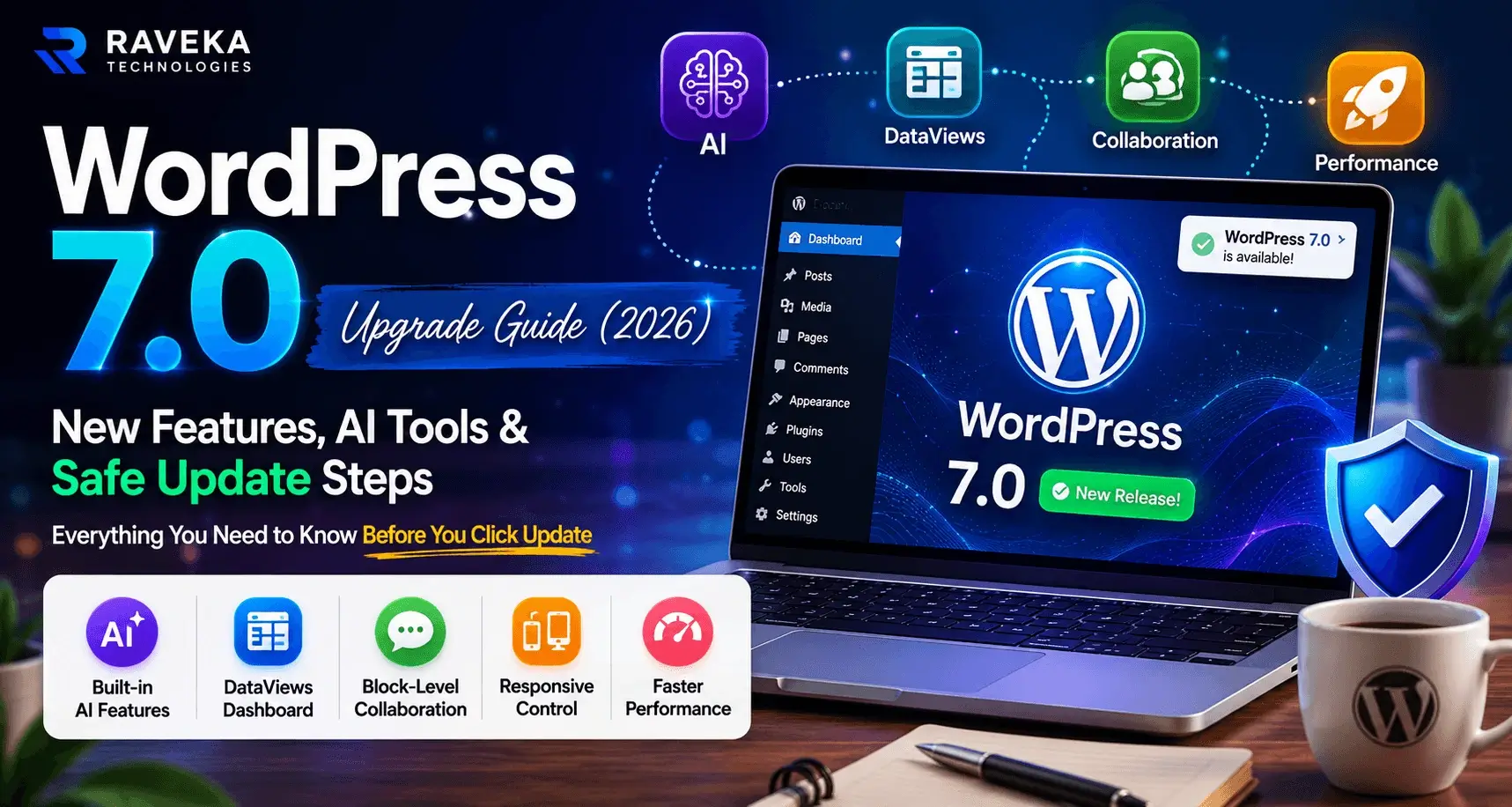
WordPress 7.0 Upgrade Guide (2026): New Features, AI Tools & Safe Update Steps
WordPress 7.0 Update Guide (2026): Features, AI Tools & Safe Upgrade Checklist
WordPress 7.0 is expected to bring major improvements in AI integration, performance optimization, Full Site Editing, and website management workflows. But before updating your business website, there are several important things every website owner should understand.
It was 9:14 AM when the notification appeared on the dashboard.
“WordPress 7.0 is available. Please update now.”
If you’ve managed a WordPress website before, you probably know that feeling — a mix of excitement and concern.
“Should I update now? What if my website breaks? What if plugins stop working?”
At Raveka Technologies, we manage WordPress websites for businesses across the USA, UK, Australia, Canada, Germany, and the Netherlands — and we’ve seen both successful upgrades and complete website failures caused by rushed updates.
- Businesses that upgraded safely and improved performance
- Businesses that updated without testing and broke their websites
That is why we tested the latest WordPress update environment, reviewed the Gutenberg roadmap, and created this detailed WordPress 7.0 upgrade guide.
Important Note: Some features mentioned in this article are based on Gutenberg roadmap discussions, beta testing environments, and expected WordPress improvements. Final features may vary depending on the official WordPress 7.0 release.
Table of Contents
- Top WordPress 7.0 Features
- WordPress 7.0 Upgrade Checklist
- How to Safely Upgrade WordPress
- Best Features by Business Type
Why Is WordPress 7.0 Important?
The WordPress 7.0 update is expected to be one of the biggest structural improvements since the block editor launched in 2018. It represents the beginning of Gutenberg Phase 3, which focuses on AI workflows, collaboration tools, and smarter editing experiences.
The Evolution of WordPress
- Phase 1 (2018): Introduction of Gutenberg Block Editor
- Phase 2 (2021–2024): Full Site Editing (FSE)
- Phase 3 (2026+): AI & Collaboration Features
- Phase 4 (Future): Native multilingual capabilities
The upcoming WordPress release does not complete Phase 3 — it officially starts it.
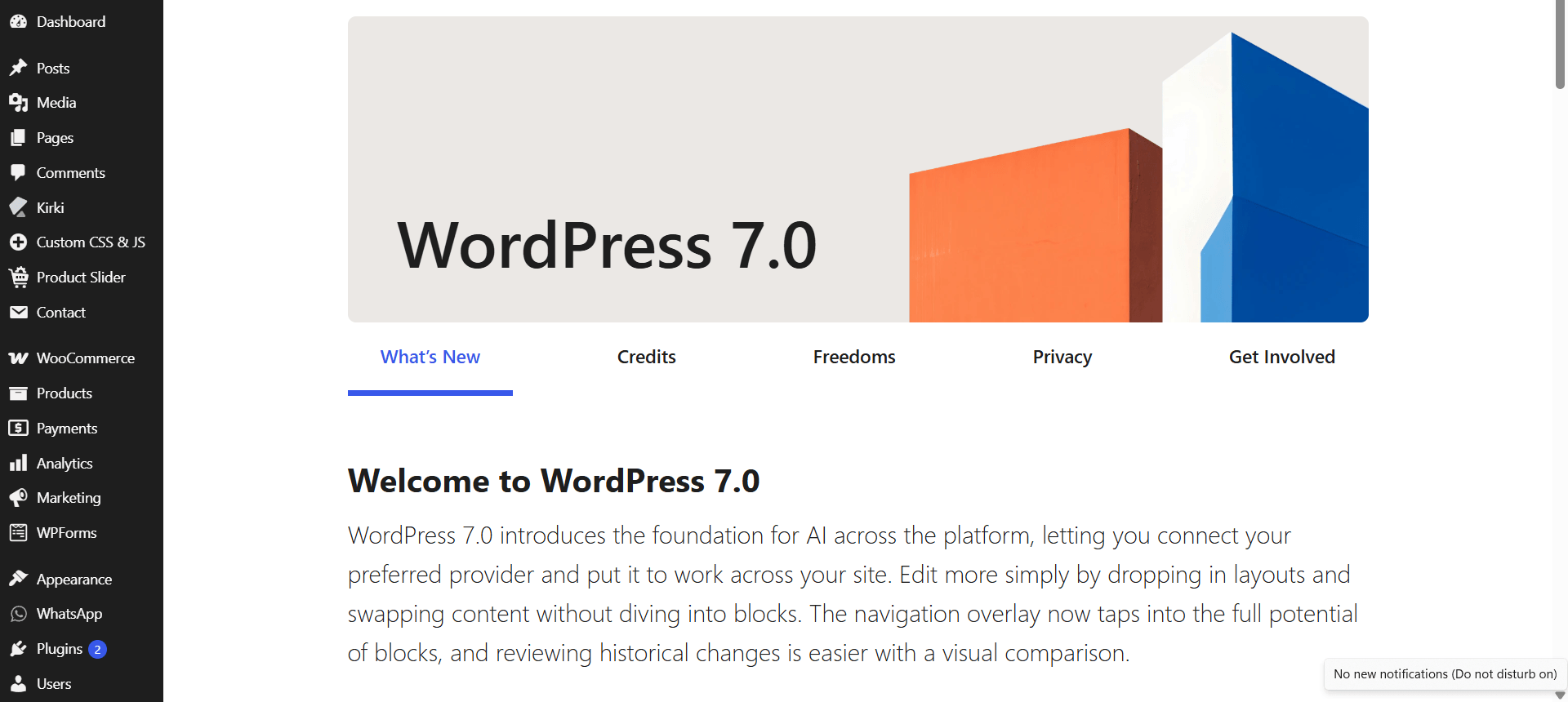
Top WordPress 7.0 Features for Business Websites
1. AI Features & Smart Workflows
The latest WordPress update is expected to introduce deeper AI integration capabilities directly inside the WordPress ecosystem.
Expected AI Integrations
- OpenAI (ChatGPT)
- Google Gemini
- Anthropic Claude
Potential AI Capabilities
- AI-assisted content writing
- SEO optimization suggestions
- Content summarization
- Workflow automation
- AI-powered editing assistance
You can learn more from the official WordPress developer documentation.
2. Improved Dashboard Experience
WordPress is expected to continue improving the admin dashboard experience for businesses managing large websites and WooCommerce stores.
- Better content organization
- Faster admin workflows
- Improved filtering systems
- Cleaner management interface
- Enhanced scalability for large websites
3. Better Collaboration Tools
Collaboration improvements may allow agencies, writers, editors, and marketing teams to work more efficiently inside the WordPress editor.
- Editorial collaboration
- Internal content comments
- Review workflows
- Agency-client communication improvements
4. Responsive Design Controls
Responsive editing improvements are expected to make mobile optimization easier without relying heavily on custom CSS.
- Show blocks only on mobile devices
- Hide content on tablets
- Create device-specific sections
- Improve mobile user experience
5. Better Website Performance
Performance optimization continues to remain a major focus for WordPress websites.
- Improved image optimization
- Faster loading pages
- Better Core Web Vitals
- Reduced server load
- Improved website speed
You can analyze your website speed using Google PageSpeed Insights.
WordPress 7.0 Upgrade Checklist Before Updating
1. Take a Complete Website Backup
Before updating WordPress, always create a complete backup of your website files and database.
Things You Must Backup
- Database
- Themes
- Plugins
- Media uploads
- Configuration files
Recommended Backup Plugins
- UpdraftPlus
- All-in-One WP Migration
- Solid Backups
2. Check PHP Version Compatibility
Older PHP versions may create compatibility problems after updating WordPress.
- Minimum Recommended: PHP 7.4
- Best Recommended: PHP 8.1 or PHP 8.2
3. Update Plugins & Themes First
Never update WordPress core before updating plugins and themes.
- Go to Dashboard → Updates
- Update all plugins
- Update active themes
- Then update WordPress core
4. Use a Staging Website
Testing updates on staging websites helps prevent live website crashes.
Things You Should Test
- Homepage layout
- Navigation menus
- Contact forms
- WooCommerce checkout
- Mobile responsiveness
- Page speed performance
5. Remove Unused Plugins
Unused plugins increase:
- Security vulnerabilities
- Plugin conflicts
- Website performance issues
- Maintenance complexity
6. Enable Maintenance Mode
Maintenance mode prevents visitors from seeing broken pages during updates.
Popular Maintenance Plugins
- WP Maintenance Mode
- SeedProd
- Coming Soon by WPBeginner
How to Safely Upgrade WordPress
- Login to your WordPress dashboard
- Go to Dashboard → Updates
- Click Update Now
- Wait for installation to complete
- Test all important pages and forms
- Clear website cache
- Disable maintenance mode
Best WordPress Features by Business Type
Content Publishing Websites
- AI writing assistance
- Better editorial workflows
- Improved content management
WooCommerce & eCommerce Websites
- Faster product management
- Improved dashboard workflows
- Performance optimization
- Better image handling
Mobile-Focused Businesses
- Responsive design improvements
- Better mobile optimization
- Improved user experience
Agencies & Large Teams
- Collaboration improvements
- Workflow management
- Scalable website management
The Feature That Did Not Make It
Real-time collaborative editing similar to Google Docs was reportedly postponed due to technical complexity and stability concerns.
Honestly, that was probably the right decision. Stability is more important than rushing unfinished features into production websites.
Should You Upgrade to WordPress 7.0?
Yes — but cautiously.
If your website is business-critical, waiting a few weeks after release is usually safer to ensure plugin compatibility and ecosystem stability.
Best Practices Before Updating
- Create backups first
- Use staging websites
- Update plugins before core
- Test all critical pages
- Monitor performance after updating
Need Help Upgrading Your WordPress Website?
At Raveka Technologies, we help businesses safely manage WordPress upgrades, WooCommerce optimization, website maintenance, and performance improvements.
Our WordPress Services Include
- Safe WordPress upgrades
- Website speed optimization
- WooCommerce optimization
- Security audits
- AI integration consulting
- Ongoing maintenance support